PDF SEO Reports: What to Include and How to Automate Them
A PDF search engine optimization (SEO) report should show site performance right away. If it takes more than a few seconds to see what’s happening, the report isn’t doing its job.
Many reports overload readers with charts and raw data. Clients end up interpreting results themselves, which weakens the value of the report.
This guide explains how to write PDF SEO reports that highlight results, clarify performance, and identify priorities.
TL;DR
-
PDF SEO reports summarize search performance, including traffic, rankings, and technical SEO data in one document.
-
A complete report includes a results summary, recommendations, on-page analysis, rankings, backlinks, and site health.
-
Clear layout and benchmarks help readers understand performance without reviewing every chart.
-
Manual reporting takes time due to data collection, formatting, and repeated formatting tasks.
-
TapClicks automates data collection, report generation, and delivery using templates and connected data sources.
What Is a PDF SEO Report?
A PDF SEO report is a downloadable file that shows how a website performs in search engines. It includes key metrics like traffic, keyword ranking, backlink analysis, and technical SEO findings in one place.
Most reports gather data from tools like Google Analytics and Google Search Console. They include conversion rate, bounce rate, and domain authority to show how SEO efforts connect to business results.
Agencies rely on PDF reports since they’re easy to share and review. Clients can open a file, scan performance, and understand results without logging into a reporting tool.
According to Research and Markets, the SEO industry is projected to reach $108.28 billion in 2026. As investment in SEO increases, reporting becomes essential for showing progress and retaining client relationships.
Core Sections Every PDF SEO Report Should Include
To cover SEO performance properly, every PDF report should include the following sections.
Results Summary
Start with SEO metrics that show overall performance. Include organic traffic, keyword ranking, and conversions so readers can see how the website is performing right away.
Add a comparison with the previous reporting period. If traffic went up and form fills went down, put both numbers next to each other.
A simple grade or status label helps readers read the summary faster. It gives them a quick read before they get into the details.
For example, you can label performance as B+ with “Needs Improvement in Conversions” or use color indicators like green for strong performance, yellow for moderate, and red for critical issues.
SEO Recommendations
List recommendations based on the issues found in the report. Group them into areas such as content updates, technical SEO fixes, and external links.
Order them by priority. Fixing indexing issues or broken URLs should come before minor meta updates.
Connect each recommendation to a number already shown in the report. If a page gets impressions but a few clicks, rewrite the meta title and meta description.
On-Page SEO Analysis
Review how each page is optimized for search engines. Look at keyword usage, headings, and content depth.
Check meta tags, schema markup, and indexing signals. These affect how a page appears in search results and whether it gets indexed.
Use an SEO audit tool to scan large websites. It flags missing meta tags, duplicate content, and crawl issues without checking each page manually.
Keyword Rankings and Search Visibility
Show where target keywords rank right now and compare those positions with the last reporting period. That shows whether visibility improved or dropped.
Include impressions, clicks, and click-through rate (CTR) from Google Search Console. A keyword with high impressions and weak CTR often needs a better title tag or meta description.
Backlinks and Authority
Show how many websites link to the domain. Include total backlinks, referring domains, and the pages that earn the most links.
Review anchor text so readers can see how other sites describe the page. That helps explain whether link signals match the target topic.
Include domain authority or similar metrics to compare performance against competitors.
Usability and User Experience
Show how the website looks and performs on mobile, tablet, and desktop. Poor layout, hard-to-tap buttons, or slow loading can push visitors off the page.
Include Core Web Vitals (CWV) and engagement metrics like bounce rate and average engagement time. These numbers show whether visitors stay, scroll, and interact with your content.
If a page has strong rankings but weak engagement, the issue may be layout, speed, or content clarity.
Technical Issues and Site Health
Review page speed, load time, and technical issues such as broken links or script errors. These can prevent pages from ranking.
Check file sizes, scripts, and server response time. Large images or unoptimized code can slow down a page.
A site health score summarizes technical conditions and shows whether recent fixes improved performance.
Local SEO and Presence (If Applicable)
Include Google Business Profile data such as views, clicks, calls, and direction requests. These numbers show how people find and contact the business from local search.
Add review count and average rating. Reviews affect local visibility and influence whether a searcher chooses that business.
For multi-location marketing, compare performance by location to identify which areas need attention.
Tracking, Analytics, and Data Accuracy
Make sure Google Analytics 4 (GA4) and Google Search Console collect data correctly. Broken tags or missing integrations can leave major gaps in the report.
Include conversion tracking for forms, calls, purchases, or booked demos. That connects organic traffic with leads, sales, or revenue.
If tracking is inaccurate, the report shows the wrong performance and leads to poor decisions.
Why Creating PDF SEO Reports Is Still So Time-Consuming
Traffic, keyword rankings, backlinks, and conversion data come from different tools. GA4, Google Search Console, and each SEO tool report separate data points, so numbers need to be checked before they go into a PDF report.
Manual work adds up with every account. Reports get rebuilt, charts get reformatted, and company details or brand elements get updated for each client. As accounts increase, reporting time and cost increase with them.
Many reports still leave clients asking questions. Metrics are listed, but the report doesn’t show which pages need updates or which technical issues affect performance. That leads to more follow-ups and revisions.
How to Automate PDF SEO Reports and Save Hours
Manual reporting repeats the same steps every cycle. Data gets copied from different tools, added into custom reports, and formatted again, which increases the chance of errors.
TapClicks organizes reporting into one workflow:
-
Build reports in Report Studio using a drag-and-drop editor with charts connected to real-time metrics
-
Start with templates or customize your own reports
-
Connect GA4 and Google Search Console so that data updates without manual input
-
Export reports as PDF or PowerPoint, or send them automatically on a schedule
-
Apply white-label branding so every report matches your company details
-
Use SmartSlides to present performance data in a ready-to-share deck
-
Send summaries through SmartEmail so clients receive updates in their inbox
-
Track keyword rankings, backlinks, and site audits through Raven to measure performance from connected data sources
Once a report is set, it updates with new data and sends on schedule. This keeps reporting consistent and frees up time for analysis.
Best Tips for High-Impact PDF SEO Reports
Keep reports easy to scan. Use short sections, clear labels, and visuals that highlight key data points without forcing readers to interpret every chart.
Include recommendations that connect to results. If a product page in an e-commerce site gets traffic but no purchases, review pricing, product copy, or checkout flow.
Use benchmarks to add context. A 2% conversion rate means more when compared with past results or industry ranges.
Keep formatting consistent. When every report follows the same layout, clients know where to look without searching through the file.
Use templates and saved setups to avoid redoing the same work. These resources help keep reports accurate while freeing up time to analyze performance and improve your SEO strategy.
Turn Your PDF SEO Reports Into Clear Insights With TapClicks
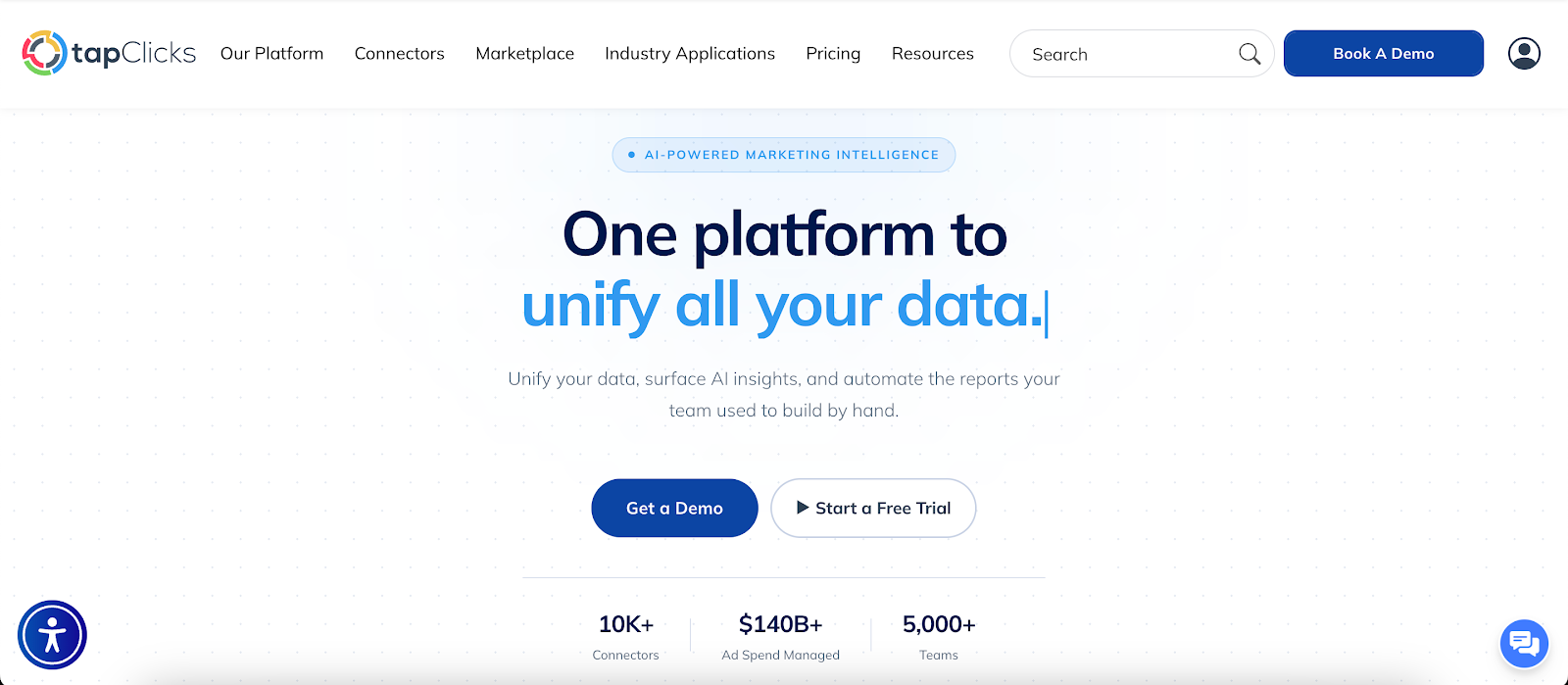
PDF SEO reports should make performance easy to understand and point to areas that need updates. When key data points reflect leads, sales, or revenue, the report helps refine your SEO strategy and attract more customers.
Time spent preparing reports limits how much analysis gets done. TapClicks updates data and delivers insights automatically, so SEO experts can spend more time improving pages and campaigns.
Book a demo with TapClicks to see how your reports can run without manual report preparation!
FAQs About PDF SEO Reports
What sections should a PDF SEO report include?
A PDF SEO report should include a results summary, recommendations, on-page analysis, keyword rankings, backlinks, usability, technical performance, and tracking accuracy. These sections cover the main factors that affect search performance.
Are PDF SEO reports good for client reporting?
Yes, PDF SEO reports work well for client reporting since they’re easy to share and review. Clients can open a single file and see performance without logging in to a reporting platform.
How can I automate SEO reports?
You can automate SEO reports using a tool like TapClicks. It connects data sources, updates reports automatically, and can send insights to email or customer relationship management (CRM) systems for easier access.